Birds of a feather flock together – and people management should be the same.
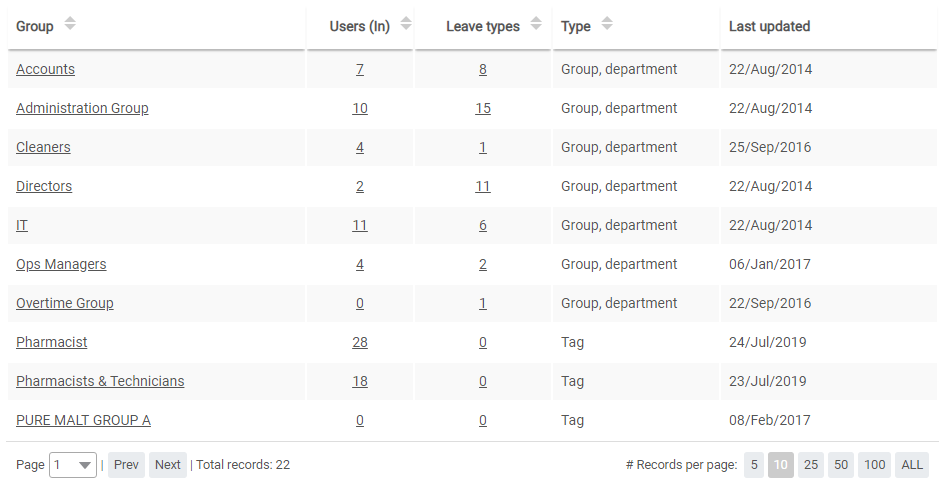
WhosOffice gives your personnel the ability to group staff by common factors, such as their skillset, seniority, competencies and qualifications. Our flexible group management tools make it easy to coordinate people across departments and locations, and to identify the right people when further support is required.
Effortless management
Categorising your workforce by key skills makes it much simpler to manage them. Employees can be part of multiple groupings, for finer control over structuring and decision-making.
- Create groups to match your corporate structure
- Use employee groupings to manage company rules
- Choose whether groups are public or private
- View calendars by individual or multiple groups
There’s no limit to how many groups you can create in WhosOffice – you choose the best way to manage your workforce.
Flexible tools for management staff
The WhosOffice grouping feature is especially useful for management personnel, who are co-ordinating the needs of several employees.
Users can assign staff to as many groups as they want, selecting whether that group is visible to the team member, or a private grouping set up for internal purposes.
Coordinating a global workforce
International companies will find WhosOffice is ideal for managing staff across multiple countries.
It’s easy to create different groups for each territory, with rules and restrictions bespoke to each region.


